Blog

  • Conditional Content [conditional_data]

    n

    You may see a dropdown list of OS list on the doc details page right sidebar on the theme demo. See the screenshot below-

    nnnn

    You can display conditional contents in your documentation using this dropdown. Visitor of your website can see the alternative info based on the dropdown value selected.

    nnnn

    Navigate to [direction]Theme Settings > Doc Settings > Right Sidebar[/direction]. From there, you will find the Dropdown Options (which is marked in the screenshot below). You can create/add the dropdown list items from this option.

    nnnn

    Use the [conditional_data dependency="dropdown_title_value"] Content [/conditional_data] shortcode to display the conditional contents on your documentation. For example, you can use this dropdown for showing different keyboard shortcuts for different OS.

    nnnn

    Watch the video tutorial to see the process of creating, using and applying the conditional contents.

    nnnn
    nhttps://www.youtube.com/watch?v=muNTEVSShfs&t=87sn
    nnnn

    n
  • [direction]

    n

    You may see some direction or steps highlighted on the theme doc demo pages as like the below screenshot.

    nnnn
    nnnn

    We used the [direction] shortcode to render the design of the steps. Your shortcode could be [direction]Theme Options > Header > Top of Header > Menu Element[/direction] Use the > character as the direction separator icon. This character (>) will be replaced with an arrow-right icon by default.

    nnnn

    You can change the icon with some custom CSS. See the code below-

    nnnn
    .direction_step + .direction_step:before {n  content: "\35";n  font-family: eleganticons;n}
    nnnn

    ​Here the content value is the Elegant Icon​ code. You would not find the icon code directly on the Elegant Icon’s website. Inspect the icon by right-clicking on it from their website. Then navigate to the CSS ::before CSS Pseudo-elements to see the icon code. Watch the below GIF to see the process of inspection and taking of the icon code.

    nnnn
    nhttps://i.imgur.com/7zac94t.gifn
    nnnn

    n
  • Using Shortcodes

    n

    When a shortcode is inserted in a WordPress post or page, it is replaced with some other content. In other words, we instruct WordPress to find the macro that is in square brackets ([]) and replace it with the appropriate dynamic content, which is produced by a PHP function.

    n
  • How to apply custom CSS code.

    n

    You can apply your own custom CSS code on Docy theme. Your custom CSS code will not be lost even if you update the theme.

    nnnn

    Navigate to [direction]Appearance > Customize > Additional CSS[/direction]

    nnnn

    Take a look at the screenshots-

    nnnn
    n
  • How to update premium plugins?

    n

    We have integrated some premium plugins and bundled those plugins with the theme. You can use the bundled plugins with the theme without purchasing the plugins.

    nnnn

    Although you can’t update the premium bundled plugins directly/automatically, you can update the plugins manually. Follow the steps below to update the premium plugins.

    nnnn
    1. Delete the old plugin
    2. Navigate to [direction]Appearance > Instal Plugins[/direction]
    3. Then install the plugin from there
    nnnn

    Note that, we are not providing the third-party plugin’s license along with the theme. We are providing the plugins file only and we are continuously updating the bundled plugins with the theme updates. 

    n
  • How to change the author’s avatar?

    n

    The theme uses Gravatar to display users avatars . to create or change your Gravatar :

    nnnn

    If you have never set-up a Gravatar account:

    nnnn
    1. Register/login to Gravatar. Upon registering, use the SAME email address that is associated with your WordPress User Profile.
    2. Upload your photo and associate it with that specific email address.
    nnnn

    If you already registered at gravatar.com, follow these steps:

    nnnn
    1. Click on “My Gravatars”.
    2. Click on “Add a New Email”.
    3. Then, you’ll need to click on “Add a New Image”.
    4. Upload an image.
    5. Then select the email address, and then select your image from the bottom. Now it’s associated with that email address. Click Save.
    6. It will take about 5-10 minutes to propagate on the internet, and they will appear on site.
    n
  • How to set the site’s favicon?

    n

    Go to Appearance > Customize > Site Identity. Then Select an image as site icon-

    nnnn
    n
  • How to Paginate a Post?

    n

    In order to paginate your blog post or page, in the Write panel in your WordPress admin, switch to the TEXT view (if you are using the Visual view) and then enter the following code to wherever you want to break the post up into a new page:

    nnnn
    <!--nextpage-->n
    nnnn
    n
  • FAQ

    n

    Supposed to be commonly asked questions and troubleshoot tricks are in this section.

    n
  • Use the theme’s list style with Gutenberg block

    n

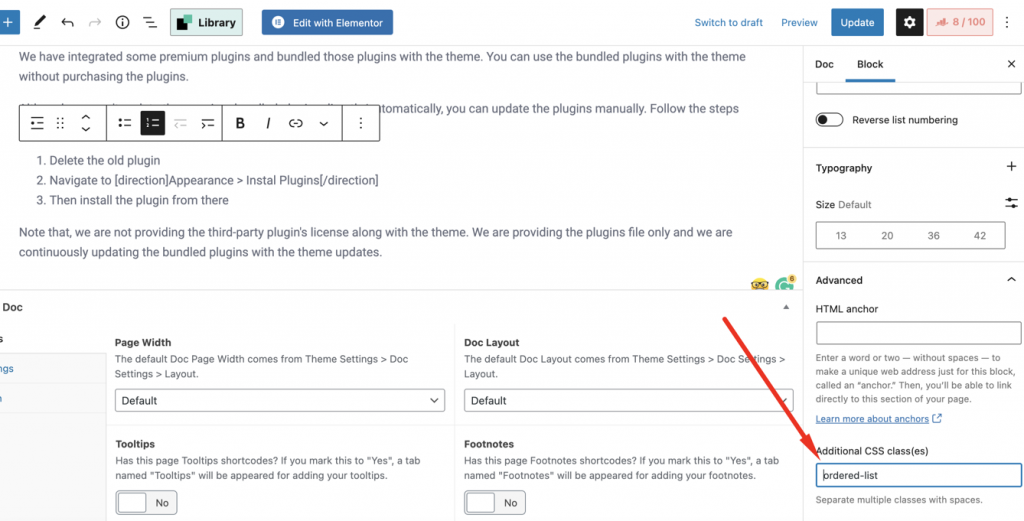
    You can use the theme’s list style with the Gutenberg list block. You just need to input the ordered-list class name in the Additional CSS class(es) field. See the screenshot below to look at where to input the class.

    nnnn

    nnnn
    n