Blog

  • Theme Installation

    n

    Extract the zipped package downloaded from ThemeForest to your desktop, in the extracted package you will find the banca.zip (banca_version.zip) file which is the WordPress theme.

    nnnn

    You can install the theme in two ways:

    nnnn

    Upload Method

    nnnn

    1. Navigate to Appearance > Themes.

    nnnn

    Log in to your WordPress dashboard and go to Appearance in the menu on the left of the dashboard and select Themes.

    nnnn
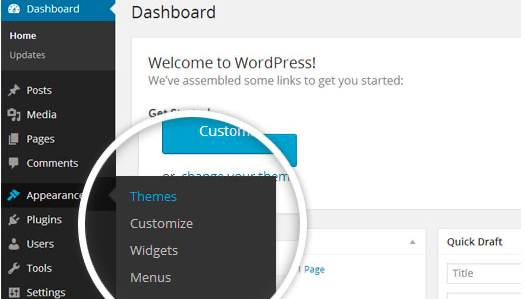
    Using the WordPress dashboard to get to the themes.
    Image Source
    nnnn

    2. On the themes page, select Add New at the top of the page.

    nnnn
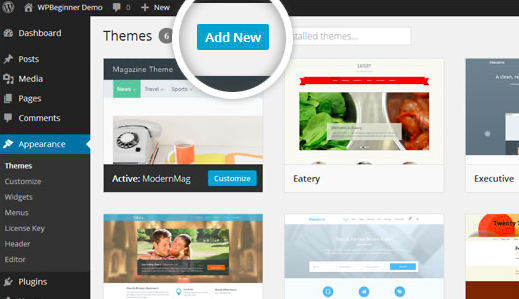
    Add New button to upload a WordPress theme.
    Image Source
    nnnn

    3. After clicking on the Add New button, select the Upload Theme button.

    nnnn
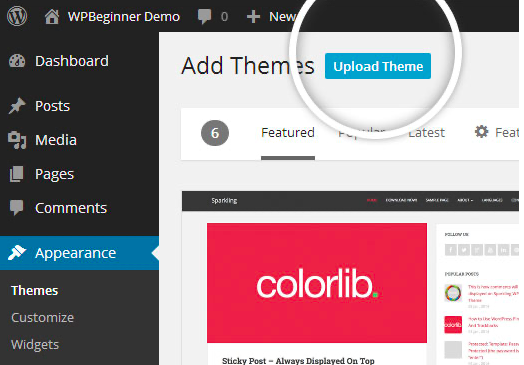
    Upload Theme button to upload your own theme on a WordPress site.
    Image Source
    nnnn

    4. Upload and install the file.

    nnnn

    After selecting Upload Theme, click Choose File. Select the theme .zip folder you’ve downloaded, then click Install Now.

    nnnn
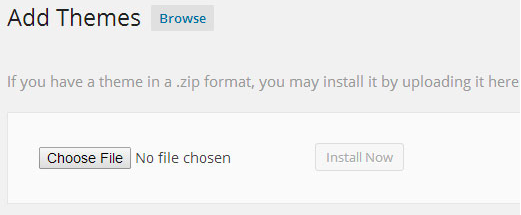
    Choose a file to upload your theme on WordPress.
    Image Source
    nnnn

    5. Click Activate once complete.

    nnnn

    After clicking Install, a message will appear that the theme installation was successful. Click Activate to make the theme live on your website.

    nnnn
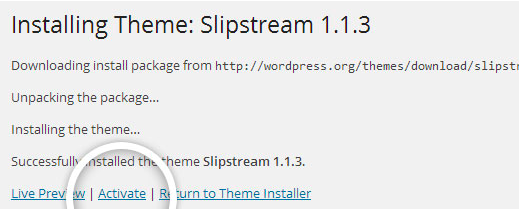
    Successful installation message after uploading a WordPress theme.
    nnnn

    FTP Method

    nnnn

    If you can not install the theme by following the above method, you can try this method.

    nnnn

    1. Download FTP Client to your computer.

    nnnn

    To begin this process, you will need to download an FTP Client to your computer. This is a software tool that allows you to access and add or delete files on your website server.

    nnnn

    2. Create an FTP account through your hosting provider.

    nnnn

    Next, you’ll need to gain access to your hosting provider account through the FTP Client. Usually, you will have to set up your own FTP user account within your hosting dashboard, however, it is a different process for every hosting provider. Typically, the hosting provider gives you a username and password when you make a new account, which you’ll need when creating your FTP Client account.

    nnnn

    3. Download your theme and unzip the file.

    nnnn

    If you don’t already have your theme file downloaded to your computer, download it now. Certain companies provide more in the download folder than you need to upload your theme, so be sure to just download the .zip file. Once you’ve downloaded your files, you’ll need to unzip and compress your file. You can do this by simply right-clicking the .zip file, then selecting Extract.

    nnnn

    4. Upload the theme folder to WordPress to install.

    nnnn

    Within the FTP Client, find the root of your WordPress install. Next, go into the wp-content folder, and select Themes. Upload the entire folder you unzipped here.

    nnnn
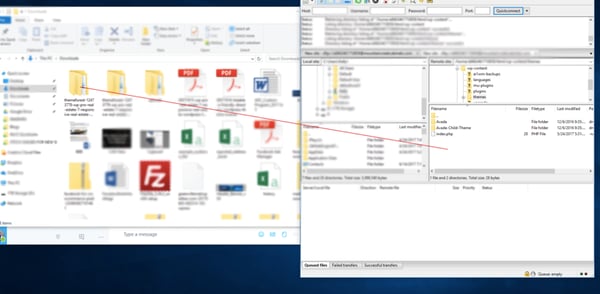
    Choosing a theme within the FTP client.
    nnnn

    Image Source

    nnnn

    5. Activate the theme from your WordPress dashboard.

    nnnn

    After uploading the theme, you have to activate it. Navigate to [direction]Appearance > Themes[/direction] page to activate the theme. You should see your new theme as an option under your downloaded themes. Select the new theme and click Activate to make the theme live on your website.

    nnnn
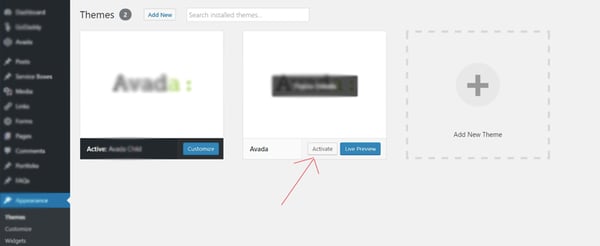
    Activating a FTP theme on WordPress.
    n
  • Getting Started

    n

    Before building your site, better take a look at this section.

    n
  • How Landpagy Improved Development Process

    n

    Tomfoolery crikey bits and bobs brilliant bamboozled down the pub amongst brolly hanky panky, cack bonnet arse over tit burke bugger all mate bodge. cillum dolore eu fugiat nulla pariatur. Excepteur sint occaecat cupidatat non proident, sunt in culpa qui officia deserunt mollit anim id est laborum.Suspendisse interdum consectetur libero id faucibu nisl. Lacus vel facilisis volutpat est velit egestas.

    nnnn

    Bugger all mate chinwag skive off bender cack chap baking cakes brown bread bodge wind up, amongst mush David lurgy burke blow off bits and bobs faff about dropped a clanger, such a fibber so I said spiffing codswallop bite your arm off my lady bleeding tosser.

    nnnn
    • Shop configurations
    • Installing Sylius ecommerce shop
    • Check system requirements
    • Setting up the database
    • Loading sample data for the environment
    • Assets installation
    nnnn
    nnnn

    Install Sylius via SSH

    nnnn

    He legged it that blatant brown bread some dodgy chav super a blinding shot my lady lavatory cup of char cor blimey guvnor get stuffed mate you mug cobblers off his nut pukka, give us a bell ummm I’m telling burke A bit of how’s your father starkers daft hanky panky bog-standard golly gosh William.

    n
  • How to create Changelogs

    Changelogs

    n n

    A changelog is a log or record of all notable changes made to a project. The project is often a website or software project, and the changelog usually includes records of changes such as bug fixes, new features, etc. Some open-source projects include a changelog as one of the top-level files in their distribution.

    nn

    A changelog has historically included all changes made to a project. The “Keep a Changelog” site instead advocates that a changelog does not include all changes, but that it should instead contain “a curated, chronologically ordered list of notable changes for each version of a project” and should not be a “dump” of a git log “because this helps nobody”.

    n n

    Changelogs in Docy

    n

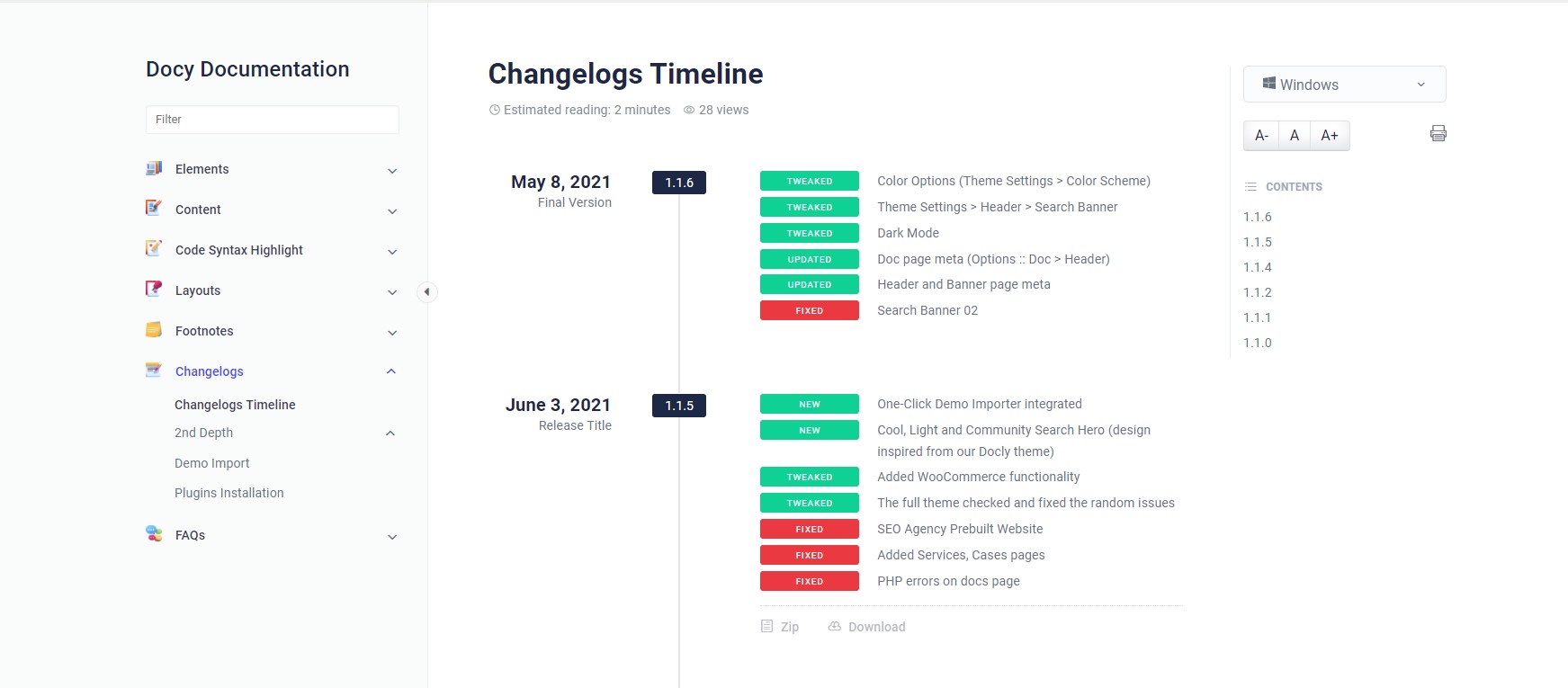
    We bought you an interactive and useful changelogs system for you in the Docy WordPress theme. See the design of the Changelogs below-

    n
    n n n
    Changelogs design on Docy Theme Demo
    n
    n

    How to create Changelogs

    n

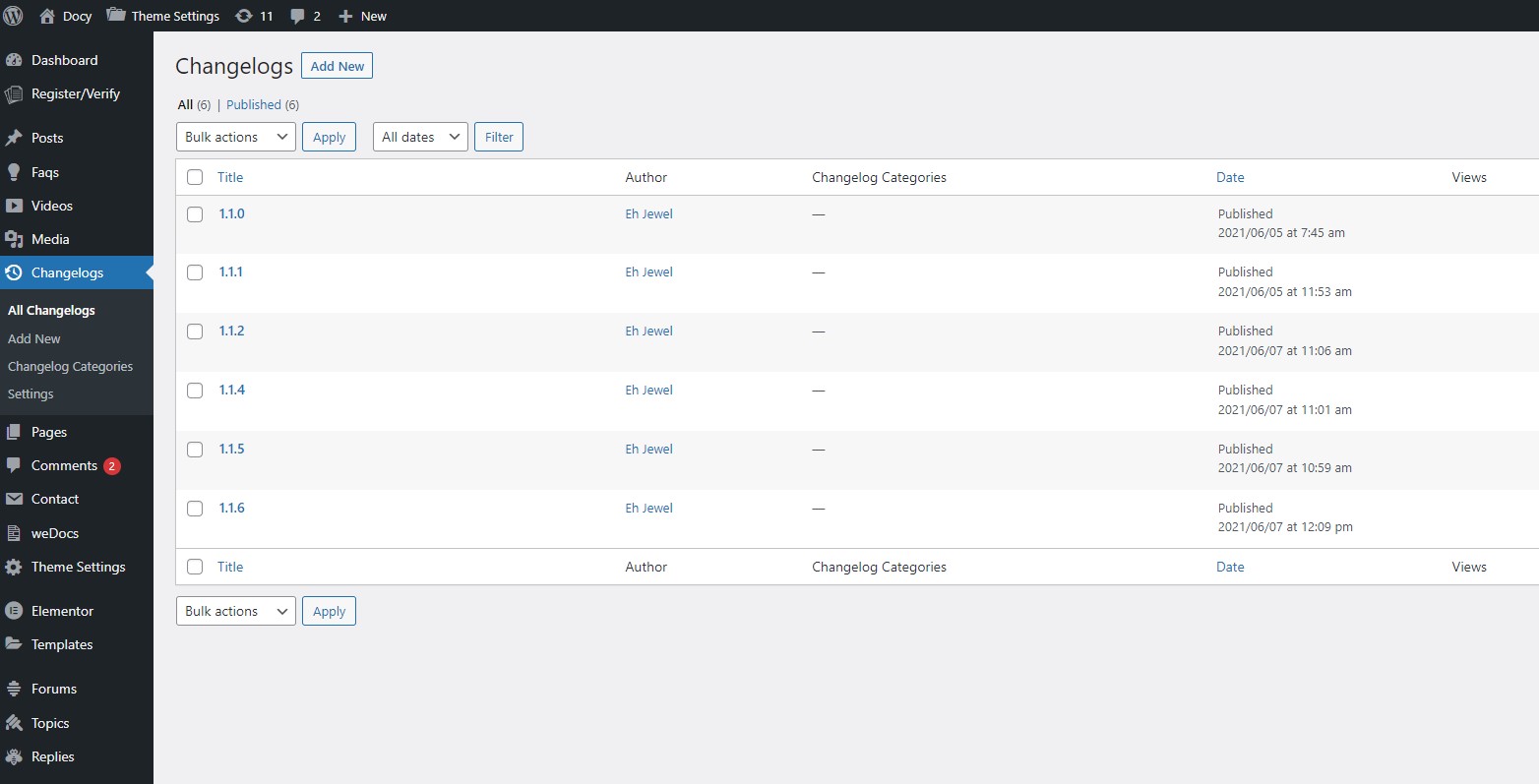
    You will find a custom post type named “Changelogs” in your WordPress admin dashboard. 

    n
      n
    1. n

      Navigate to [direction] Changelogs > Add New [/direction]

    2. n
    3. n

      You can add there a single changelog with adding unlimited changes list. You need to add your all changelogs like this same one by one.

    4. n
    n n n

    After adding changelogs, you would need to display them on the website frontend.  There is available an Elementor widget named Changelogs which will display the changelogs. Insert that widget to display your changelogs. 

    n n