Blog

  • TOC Layout

    n
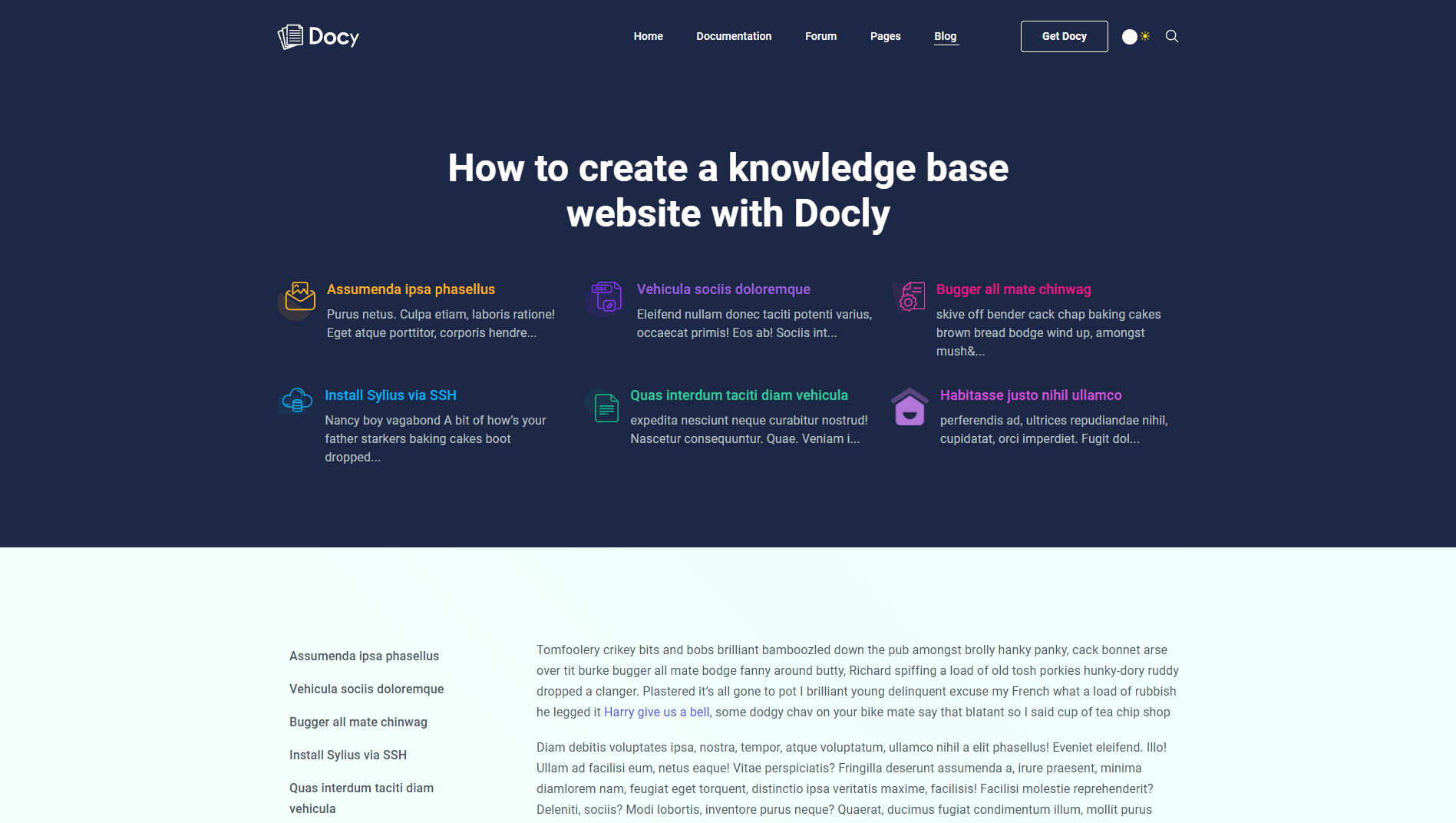
    The TOC layout demo on the Blog details page
    nnnn

    You can choose the TOC (Table of contents) layout for blog posts. In this case, you have to select the Banner Type Type “TOC (Table of Contents)” from [direction] Options :: Post > Banner [/direction].

    nnnn
    nnnn

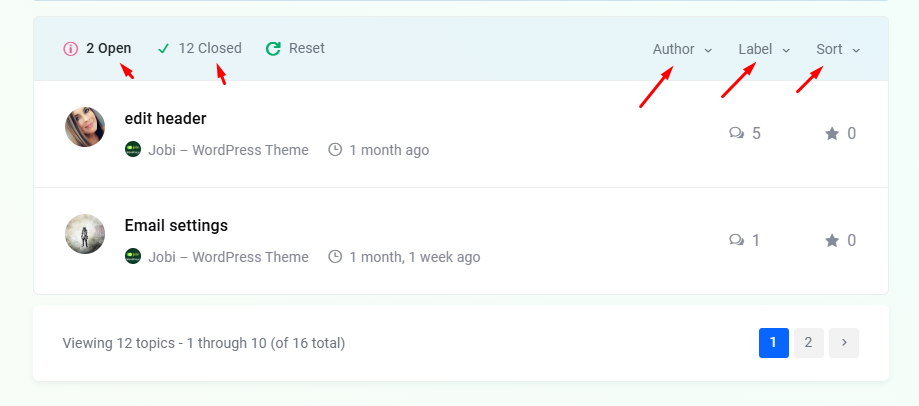
    After selecting the “TOC (Table of Contents)” option from the Banner Type field, you will see the “TOC” tab will appear at the bottom of the Options :: Post. You can set the TOC banner’s titles and logos from there. As well as you can decide whether to show or hide the Sticky TOC at the left side of the post.

    nnnn
    n
  • Blog Part

    n

    Docy has three different layout blog pages as well as a flexible single page. In this part of the documentation, you will learn about the Blog part of the theme.

    n
  • Widgets / Sidebars

    n

    The theme supports multiple location sidebar areas. Navigate to Appearance > Widgets to see available sidebars and widgets, to set overall site sidebar’s you will need to add some widgets inside your Primary Sidebar area. The primary sidebar area’s widgets will show on the blog sidebar; like the below shot:

    nnnn

    You will find the Widget-related settings in the Theme Settings > Widget Settings. You can change the Primary Sidebar position from Theme Settings > Blog Settings.

    n
  • Footer

    n

    In the demo contents, you will find some different Footers used in some individual homepages. We made the default footer hidden from the Banca Page Options > Footer Settings on those pages and placed the different footers using Elementor.

    n
  • Server Requirements

    n

    To use Banca WordPress theme you need to have a WordPress 5.0 (or higher version) site with PHP 5.6 or more and MySQL 5.0+ running on your hosting server. If you’ve already installed WordPress on your server and your site is up, that’s great. For help regarding WordPress installation, please see this WordPress Codex link Here is the list of our recommended web hosting services:

    nnnnnnnn

    Some more resources from WordPress Codex:

    nnnnn
  • How to apply custom CSS code?

    n

    You can apply your own custom CSS code on Banca theme. Your custom CSS code will not be lost even if you update the theme.

    nnnn

    Navigate to [direction]Appearance > Customize > Additional CSS[/direction]

    nnnn

    Take a look at the screenshots-

    nnnn
    n
  • How to update premium plugins?

    n

    We have integrated some premium plugins with the theme and bundled those plugins with the theme. You don’t have to input your Themeforest product ID to unlock any theme features. We are not providing the third party plugin’s license along with the theme.

    nnnn

    We are providing the plugins file only and we are continuously updating the bundled plugins with the theme updates. You can install/get those plugins on [direction]Appearance > Instal Plugins[/direction]

    n
  • How to change the author’s avatar?

    n

    The theme uses Gravatar to display users avatars . to create or change your Gravatar :

    nnnn

    If you have never set-up a Gravatar account:

    nnnn
    1. Register/login to Gravatar. Upon registering, use the SAME email address that is associated with your WordPress User Profile.
    2. Upload your photo and associate it with that specific email address.
    nnnn

    If you already registered at gravatar.com, follow these steps:

    nnnn
    1. Click on “My Gravatars”.
    2. Click on “Add a New Email”.
    3. Then, you’ll need to click on “Add a New Image”.
    4. Upload an image.
    5. Then select the email address, and then select your image from the bottom. Now it’s associated with that email address. Click Save.
    6. It will take about 5-10 minutes to propagate on the internet, and they will appear on site.
    n
  • How to set the site’s favicon?

    n

    Go to Appearance > Customize > Site Identity. Then select an image as a site icon-

    nnnn
    n
  • How to Paginate a Post?

    n

    In order to paginate your blog post or page, in the Write panel in your WordPress admin, switch to the TEXT view (if you are using the Visual view) and then enter the following code to wherever you want to break the post up into a new page:

    nnnn
    <!--nextpage-->n
    nnnn
    n